Webhook Options
Overview
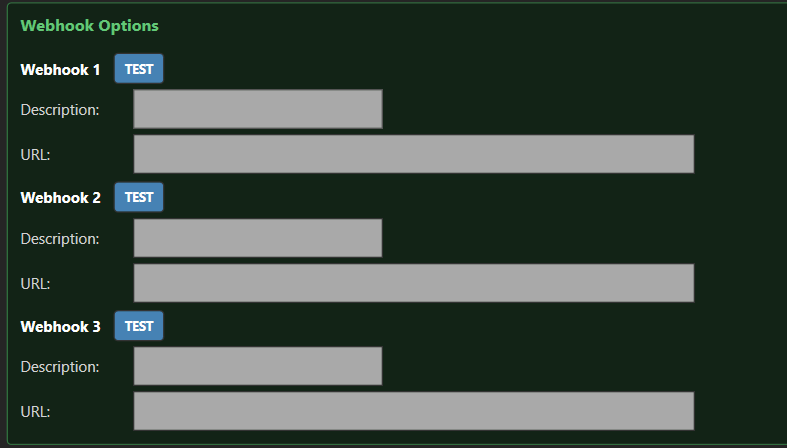
iReporter can post messages to Discord (or any webhook-compatible service) automatically when a button is pressed. Up to three webhooks can be configured.
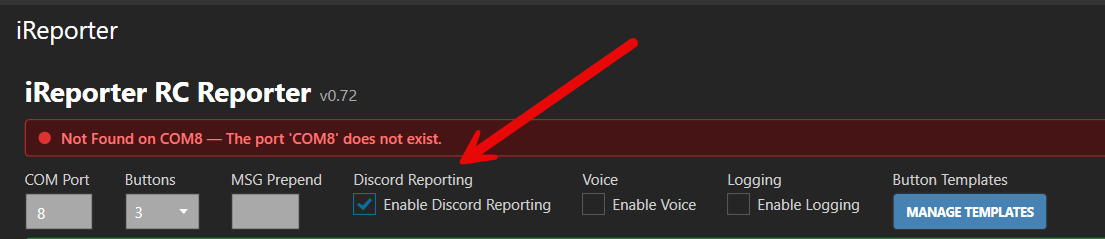
Enable Discord Reporting
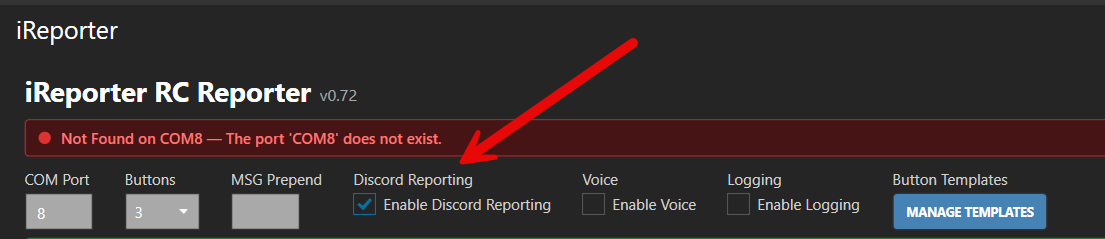
Master switch for webhook posting. When unchecked, no messages are sent to any webhook.
Getting
a Discord Webhook URL
Before you can configure a webhook in iReporter, you need to create one in Discord. You need to have Manage Webhooks permission in the Discord server to do this.
- Open Discord and navigate to the server where you want iReporter messages to appear.
- Hover over the channel you want to use and click the gear icon (Edit Channel) that appears to its right, or right-click the channel and choose Edit Channel.
- In the left sidebar of the channel settings, click Integrations.
- Click Webhooks.
- Click New Webhook.
- Give the webhook a name (e.g. iReporter) — this is the display name that will appear as the message sender in Discord. You can also set a custom avatar if you wish.
- Confirm the correct channel is selected in the Channel dropdown.
- Click Copy Webhook URL — the full URL is now on your clipboard.
- Click Save Changes, then close the channel settings.
Paste the copied URL into one of iReporter's Webhook URL fields as described below.
Configuring Webhooks
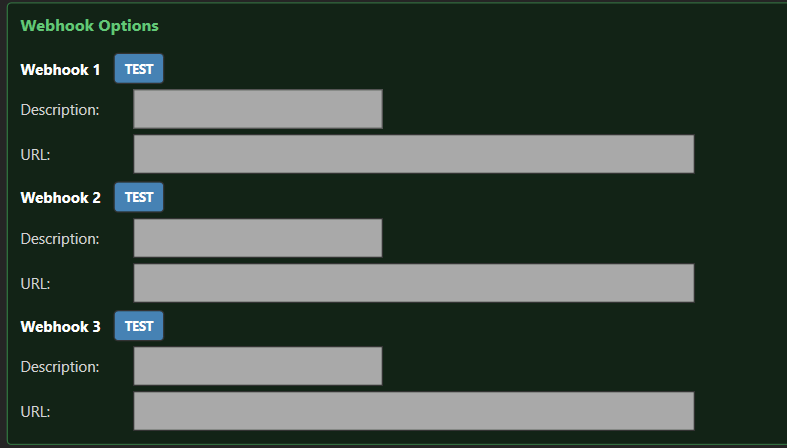
Each webhook has two fields:
URL — the full Discord webhook
URL.URL Inobtained Discord, go tofrom the
channelsteps settings > Integrations > Webhooks > New Webhook, then copy the URL.above.
Description — a label for your own reference (e.g. Race Control, Stewards, Public Feed).
You can configure up to three separate webhooks, allowing different buttons to post to different Discord channels.
Assigning Webhooks to Buttons
Each button has a Webhook dropdown that selects which of the three webhooks receives that button's messages. Set to None to suppress webhook posting for a specific button.