
General Settings
Version / Build Number

The current version of iReporter is displayed in small grey text next to the iReporter title at the very top of the settings panel (for example, v0.4891). This is useful when reporting a problem or checking whether you have the latest release.
If a newer version is available, a highlighted banner will appear below the title bar notifying you of the update and showing both your current version and the version available. You can also check for updates at any time using the Check for Update button in the top row of the settings panel — this will immediately query the update server and prompt you to download and install if a newer version exists.
Connection Status

Directly below the title, iReporter displays a live status bar that shows whether your iReporter Button Box is connected and recognised. The status updates automatically every 2 seconds and uses colour coding to make the state immediately obvious at a glance.
COM Port — Auto Detect
iReporter automatically scans all available COM ports on startup to find your Button Box. It sends a PING command to each port and connects to whichever responds with IREPORTER_READY. The detected port is shown in green in the correctsettings panel and saved for future sessions — the last known port is always tried first for faster reconnection.
If the device is not found automatically (e.g. after changing USB ports), click Auto Detect to trigger a fresh scan at any time.
If you need to connect to a specific COM port ismanually selected— infor settings,example and no other application iswhen using thatan port.Arduino-based button box on
Seriala Port
The COMknown port used— to communicate with your iReporter Button Box. Selecttype the port that matches your devicenumber (e.g. COM8).7 Youor canCOM7) findin the correctmanual portfield inand Windows Device Manager underclick Ports (COM & LPT)Connect. The connection status bar above will confirm when the correct port is selected.
Number of Buttons
Message Prepend
An optional prefix added to the start of every message before it is sent. This is particularly useful to bring up the text chat box within iRacing. By default "t" is assigned to activating the text chat box and allowing for text entry. It also can be used for tagging messages with a race series name or session identifier, for example: /rc or [SpeedTech Racing]
Enable Logging
When enabled, every button press and the resulting message are written to a dated log file in Documents\iReporter\logs\. One file is created per day, named iReporter_YYYY-MM-DD.txt. Button press events are labelled [Button Press Event] in the log to distinguish them from detection events.
Logging Settings
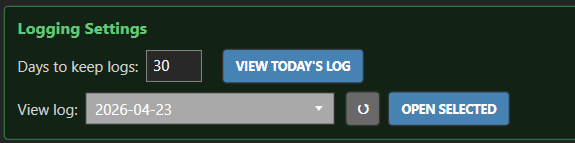
Visible only when Enable Logging is turned on.