
General Settings
Version / Build Number

The current version of iReporter is displayed in small grey text next to the iReporter title at the very top of the settings panel (for example, v0.48). This is useful when reporting a problem or checking whether you have the latest release.
If a newer version is available, a highlighted banner will appear below the title bar notifying you of the update and showing both your current version and the version available.
Connection Status

Directly below the title, iReporter displays a live status bar that shows whether your iReporter Button Box is connected and recognised. The status updates automatically every 2 seconds and uses colour coding to make the state immediately obvious at a glance.
Serial Port
The COM port used to communicate with your iReporter Button Box. Select the port that matches your device (e.g. COM8). You can find the correct port in Windows Device Manager under Ports (COM & LPT). The connection status bar above will confirm when the correct port is selected.
Number of Buttons
Message Prepend
An optional prefix added to the start of every message before it is sent. UsefulThis is particularly useful to bring up the text chat box within iRacing. By default "t" is assigned to activating the text chat box and allowing for text entry. It also can be used for tagging messages with a race series name or session identifier, for example: /rc or [SpeedTech Racing]
Enable Logging
When enabled, every button press and the resulting message are written to a dated log file in Documents\iReporter\logs\. One file is created per day, named iReporter_YYYY-MM-DD.txt.
Logging Settings
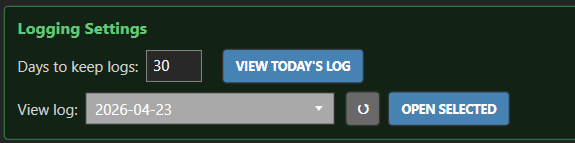
Visible only when Enable Logging is turned on.