
Voice Options
Overview
iReporter can speak a message aloud when a button is pressed. Voice is configured globally in the Voice Options section and then controlled per-button using a Speak Text field on each button.
Enable Voice
MasterTick switchEnable forVoice allin the top bar to activate voice output. When unchecked, no speech occurs regardless of per-button settings. When enabled, the Voice Options paneland expandsPush to Talk panels expand, and a Speak Text field appears on every button.
WindowsVoice Engine
Use the Voice Engine dropdown at the top of the Voice
Options panel to choose between two speech engines:
| Engine | Description |
|---|---|
| Microsoft Voice | Uses the built-in Windows Text-to-Speech |
| Eleven Labs | High-quality cloud voice synthesis from ElevenLabs. Requires an API key and an internet connection. Produces significantly more natural-sounding speech than Windows TTS. See ElevenLabs Configuration for setup instructions. |
Selecting an engine shows only the configuration relevant to that engine.
Microsoft Voice Configuration
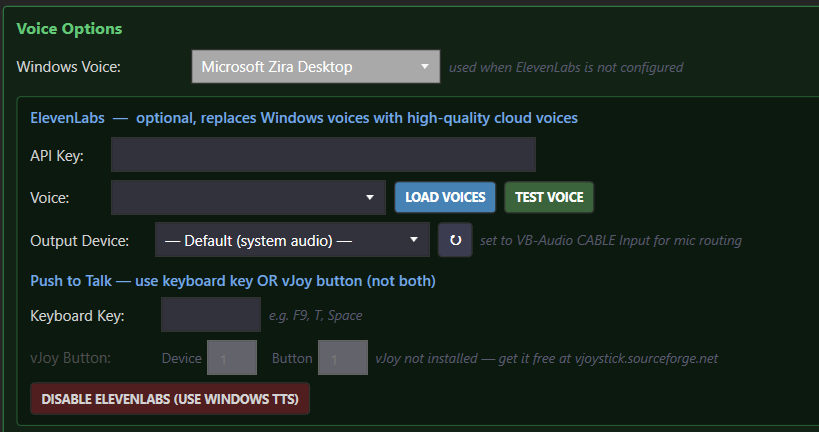
TheWhen TestMicrosoft Voice buttonis playsselected, a shortWindows testVoice phrasedropdown usingappears. Select any installed Windows SAPI voice. The default option uses whichever voice is currently active — Windows TTS or ElevenLabs.
Voice Output Device
Selects the audio output device used for all voice output — both Windows TTS and ElevenLabs. Set to Default (system audio) to use whatever Windows has set as the defaultsystem playbackdefault.
ElevenLabs device,Configuration
When orEleven selectLabs ais specificselected, devicethe (e.g.ElevenLabs yourconfiguration simpanel headset)appears. See the ElevenLabs Configuration page for full setup instructions including how to route voice independently of other system audio.
This is particularly useful on a sim rig where you want race commentary and voice alerts going to your headset while other audio goes elsewhere.
ElevenLabs
Optional high-quality cloud voice synthesis. Whenobtain an ElevenLabs API key and Voice ID are configured, ElevenLabs replaces the Windows voice for all speech output.key.
YouKey can sign up for an ElevenLabs account at https://elevenlabs.io. The FREE tier is adequate for most iReporter use.fields:
- API Key — your ElevenLabs account API
key.key - Voice — click Load Voices to fetch available voices from your account, then select one
- Voice
IDOutput Device — theIDaudioofdevicetheusedElevenLabsfor speech output. Set to VB-Audio CABLE Input if you want voicetoroutedusethrough(foundainvirtualthemicrophoneElevenLabsintovoice library).iRacing - Switch to Microsoft Voice
Name—display label only, for your reference.
Requires an internet connection during races. Ifclears ElevenLabs issettings unavailable,and noswitches fallbackback to WindowsMicrosoft TTS occurs automatically — ensure your connection is stable.
Pauses in Spoken Text
You can insert pauses into any Speak Text field using the {PAUSE} or {PAUSE:N} variable, where N is the pause duration in milliseconds.
{PAUSE}— inserts a500ms500 ms pause{PAUSE:1000}— inserts a1000ms1000 ms (1 second) pause
Example: Crash detected. {PAUSE:500} Car {CRASHCAR} at turn three.
Push to Talk
iReporter can simulate a Push to Talk key press around each spoken message, so your microphone is muted while the voice plays through your headset.
To help get around the issue of having multiple buttons assigned to one function (like press to talk), we suggest the use of VJOY. VJOY is FREE software that can become an interface that adds options for users between their device (like a steering wheel button) and the game itself.
VJOY download for Windows 10 & 11: https://github.com/BrunnerInnovation/vJoy/releases/tag/v2.2.2.0
Keyboard Key— enter the key name (e.g.F13,CapsLock). The key will be held down for the duration of the spoken text.vJoy Device / Button— alternatively, specify a vJoy virtual joystick device number and button number. Use either keyboard or vJoy, not both.
Per-Button Voice Control
When Voicevoice is globally enabled, a Speak Text box appears on each button. Enter the text to be spoken when that button is pressed. Message variables such as {DRIVER} and {CAR#} are supported and will be substituted with live data at press time.
To silence voice for a specific button, tickThe Disable Voice for this button. Thecheckbox (shown in the options row below the Button Mode dropdown) suppresses voice output for that specific button while keeping the speak text is preserved but no audio will playsaved for thatfuture button.use.