
Setting Up a Button
Overview
iReporter supports up to 8 buttons. Each button is independently configured with its own label, messages, webhook target, crash/incident fallbacks, and voice text. The number of visible buttons is controlled by the Number of Buttons setting.
Button Fields
Label
A descriptive name for the button shown in the settings panel (e.g. Contact Report, Yellow Flag). This is for your reference only and is not included in any sent message.
Message Templates 1, 2, 3
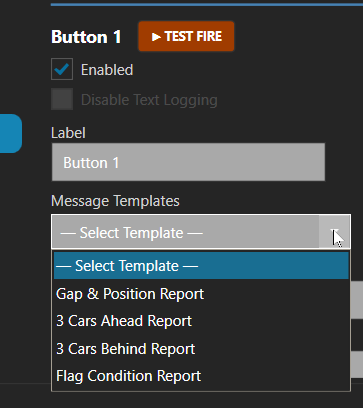
Up to three message lines can be configured per button. When the button is pressed:
Webhook
Selects which of the three configured webhooks receives this button's messages. Set to None to disable webhook posting for this button.
Disable Text Logging
When ticked, this button's presses are not written to the log file even if logging is globally enabled. Useful for buttons used very frequently (e.g. a heartbeat or status button) that would clutter the log.
Crash Fallback

Visible only when Crash Capture is enabled in iRacing Options. The green bordered box at the bottom of the button section is labelled "Sent when the button is pressed but no Crash has been detected" — this message is sent when the button is pressed and no crash is currently active. It acts as a fallback for buttons whose main messages rely on crash variables ({CRASHCAR}, {CRASHNAME}, etc.).
Leave blank to send nothing if no crash is active.
Incident Fallback

Visible only when Incident Capture is enabled. Works identically to the Crash Fallback but activates when the button is pressed and no incident is currently active. Uses incident variables ({INCCAR}, {INCNAME}, etc.) in the main messages.
Leave blank to send nothing if no incident is active.
Voice (Speak Text)
Visible only when Voice Options is enabled. Enter the text to be spoken aloud when this button is pressed. Supports message variables. Leave blank for no speech on this button.
Tick Disable Voice for this button to suppress voice output for this button while keeping the speak text saved for future use.
Test Fire
Message Templates (Saved)
The Message Templates dropdown allows you to save and load commonly used message sets. Click Manage Templates to create, rename, or delete templates. Applying a template overwrites the current button's three message fields.
Variable Helper — Type { to Browse Variables
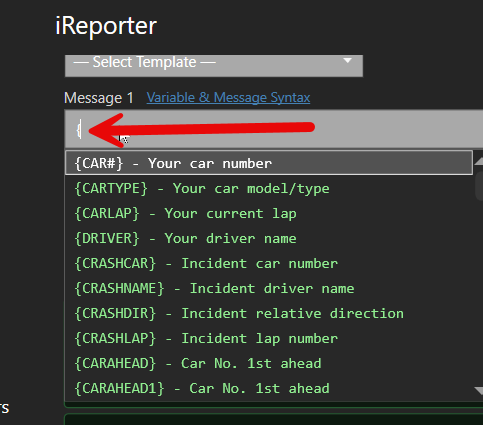
Every message text box has a built-in variable picker. You do not need to remember variable names — just type an opening curly brace { and a list of available variables will appear directly below the text box.
The list shows each variable name alongside a short description so you can quickly identify what you need:
{CRASHCAR} - Car number of the crashed car
{CRASHNAME} - Driver name of the crashed car
{CARLAP} - Your current lap (with decimal fraction)
Filtering the list
Keep typing after the { to narrow the list. For example, typing {CRASH will immediately filter the list to show only the crash-related variables. The filter is not case-sensitive — {crash and {CRASH both work the same way.
Inserting a variable
Once the list is open you can insert a variable in any of these ways:
When a variable is inserted, iReporter replaces everything from the opening { to the cursor with the complete variable token (including the closing }), so you never end up with a half-typed placeholder in your message.
Tips
{. If there is already a } after the cursor the picker will not activate.
You can still type variable names manually if you prefer — the picker is optional.